Stay in your ride
Change your Wahoo KICKR Headwind with Siri or Control Center. Your training app stays on screen, whether that’s Zwift, TrainerRoad, Rouvy, MyWhoosh or anything else.

Needs a Wahoo KICKR Headwind; it works with no other fan. For iPhone and iPad with iOS 18 or later.
Set it up once
Open My Fan once to pick your fan. You’ll never need to open it again. Siri and Control Center just work, whether My Fan is running or not, so changing your fan never pulls you out of your ride.
Say it to Siri
Your ride stays on screen. Say “Hey Siri”, then:
My Fan fifty
Or 25, 75 or 100. “Low” is 25%, “high” or “full” is 100%My Fan faster
Or “more”. One step faster, for example 50 to 75My Fan slower
Or “less”. One step slowerMy Fan off
My Fan on
Starts at 25%
You can also make your own phrase, like “Big wind”. How
Or tap it in Control Center
Add an on/off switch, Fan Up, Fan Down, and a one-tap button for each speed you like. The ring shows how fast your fan is running. They work without opening My Fan. How to add them
- On
- Off
- Fan Up
- Fan Down
- Fan 25%
- Fan 50%
- Fan 75%
- Fan 100%
The app
Two screens: one for speed, one for your fans. Here they are, for the one time you’ll open them.
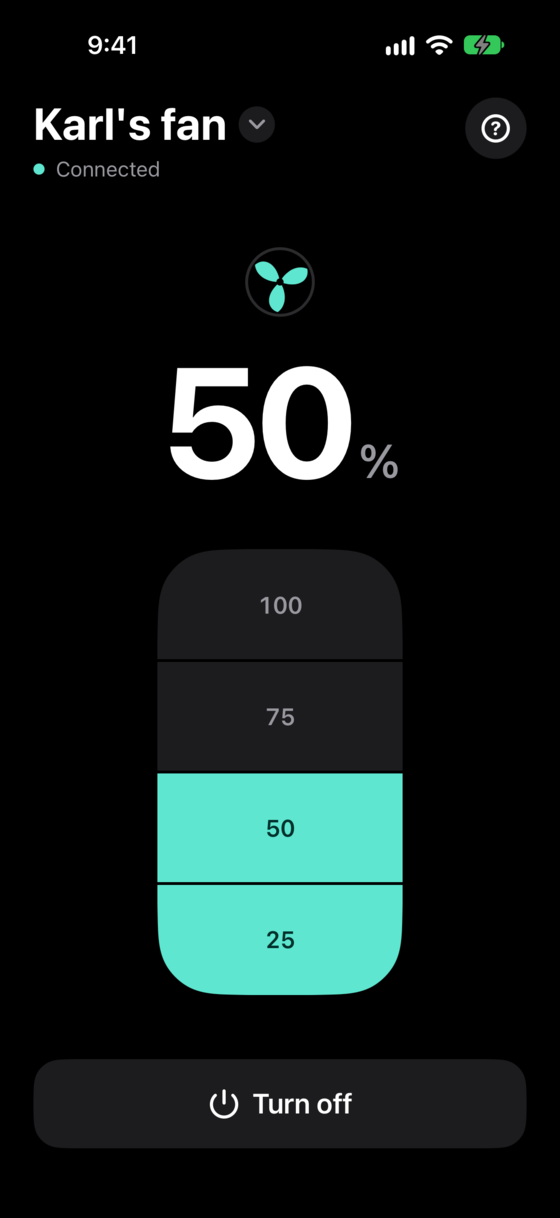
Speed: one tap per step 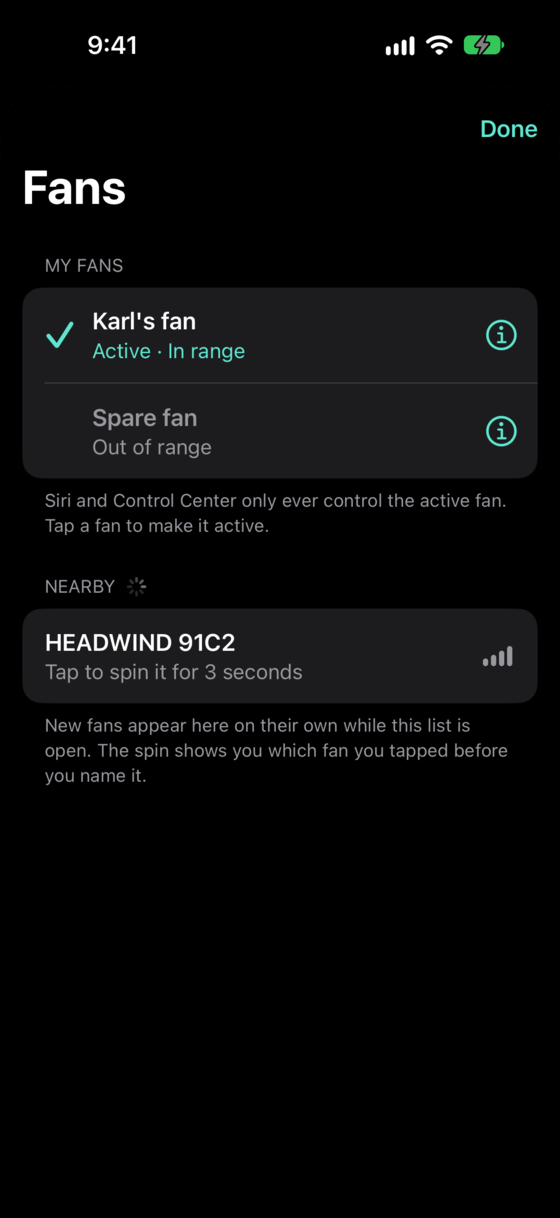
Fans: yours, and the ones nearby
Why My Fan
- Set up once. After you pick your fan, you never need to open My Fan again.
- Any training app. My Fan talks to your fan, not to your training app, so it works alongside Zwift, TrainerRoad, Rouvy, MyWhoosh and the rest.
- Always your fan. It remembers your Headwind and never grabs another one nearby, handy when two of you ride in one room. At setup, the fan you tap spins for 3 seconds so you know it’s yours.
- Private. No accounts, no ads, no tracking. Nothing leaves your device. Privacy policy
- Pay once. No subscription, no in-app purchases. Made by one rider, for riders.